
App settings
The Settings dialog (⚙ in the header or on the Start Page, or App settings in the device menu) — "Appearance, keycaps, workspace, start page & device" — has six sections down the left. Changes show as you make them so you can see the result; Done keeps them, Cancel (or closing the dialog) puts everything back the way it was when you opened it.
General
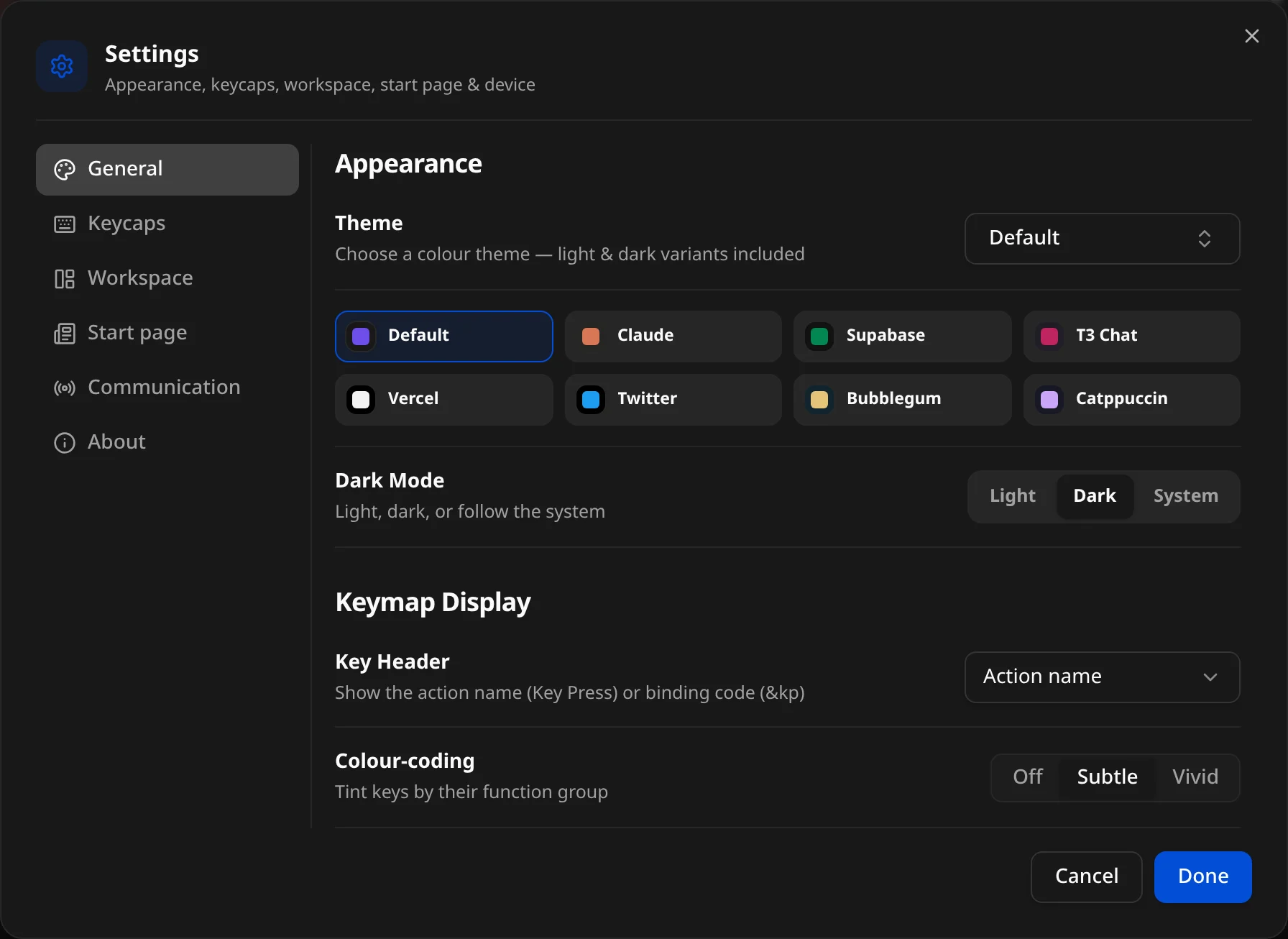
Appearance
- Theme — "Choose a colour theme — light & dark variants included": Default, Claude, Supabase, T3 Chat, Vercel, Twitter, Bubblegum, Catppuccin. Themes recolour the whole app, keycaps included.
- Dark Mode — Light, Dark or System ("follow the system").
Keymap Display
- Key Header — the small line at the top of each cap: Action name (Key Press, Mod-Tap), Binding code (
&kp,&mt) or Hidden. Kept per firmware family. - Colour-coding — "Tint keys by their function group": Off (every cap the neutral face), Subtle or Vivid.
Keycaps
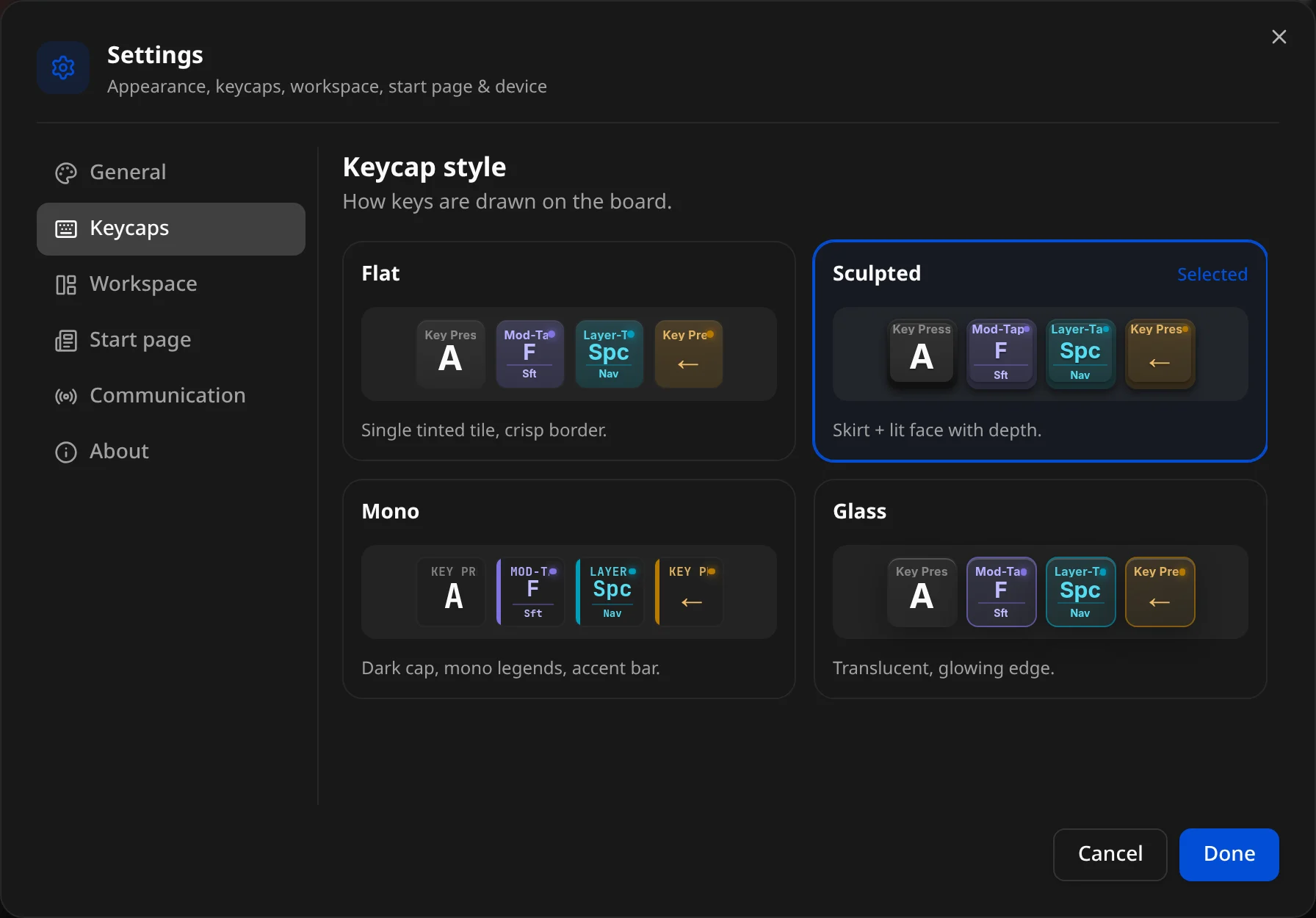
Keycap style — "How keys are drawn on the board". Each option shows a live preview, including a hold-tap cap so you can see how the two legends stack:
| Style | Looks like |
|---|---|
| Flat | "Single tinted tile, crisp border." |
| Sculpted | "Skirt + lit face with depth." (default) |
| Mono | "Dark cap, mono legends, accent bar." |
| Glass | "Translucent, glowing edge." |
Workspace
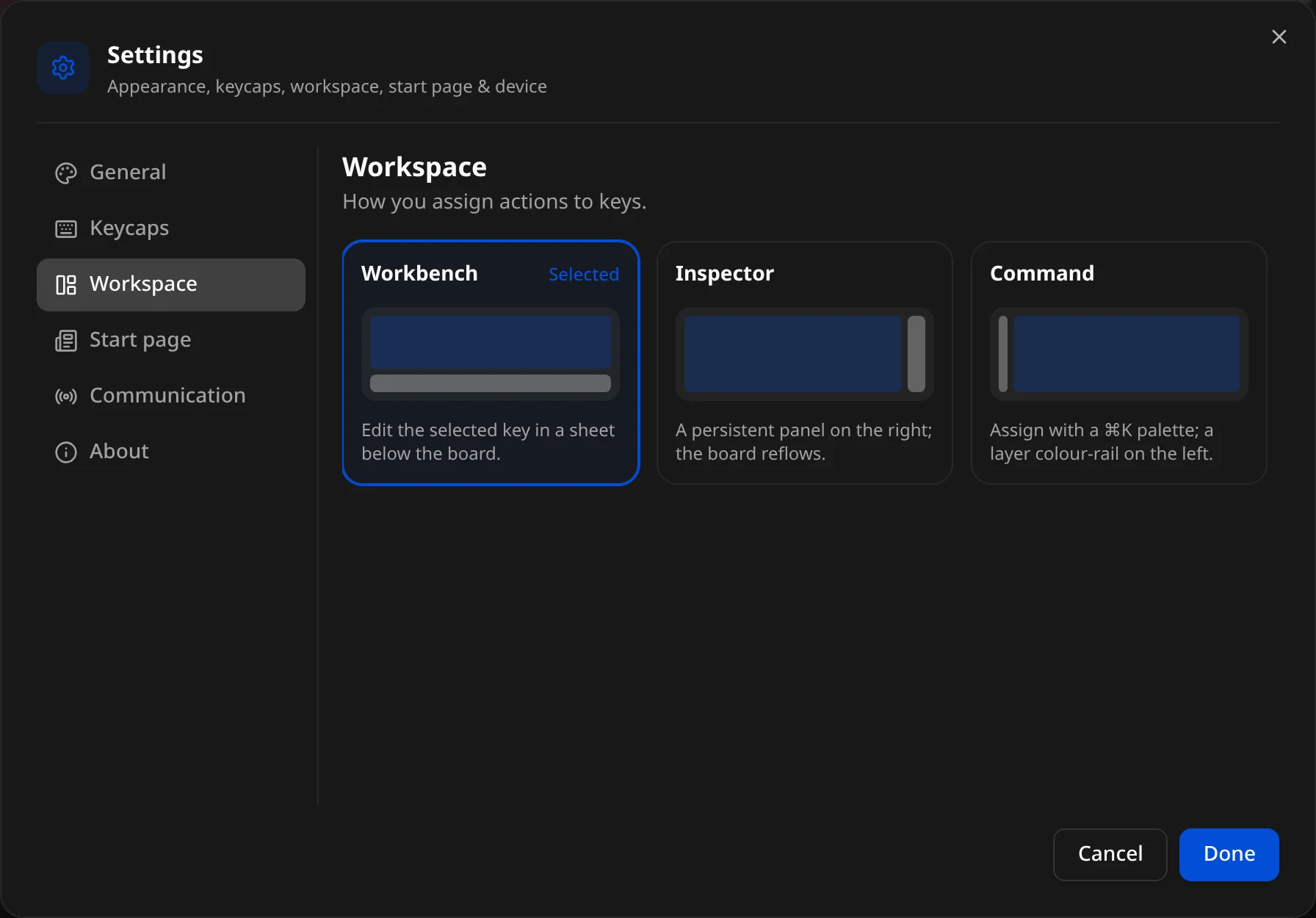
"How you assign actions to keys" — where the binding editor opens:
- Workbench (default) — "Edit the selected key in a sheet below the board."
- Inspector — "A persistent panel on the right; the board reflows."
- Command — "Assign with a ⌘K palette; a layer colour-rail on the left."
See Workspaces for what each looks like.
Start page
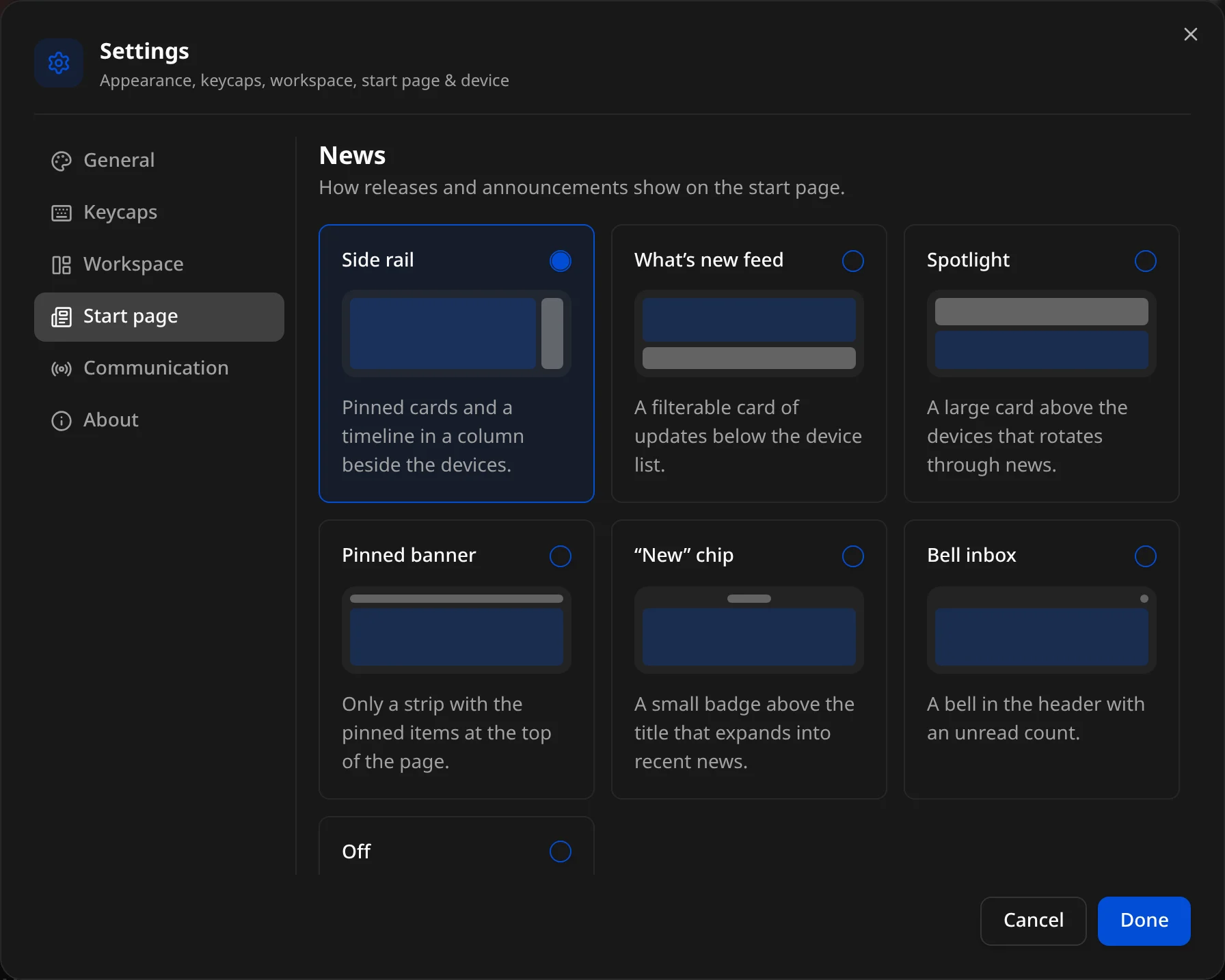
News — "How releases and announcements show on the start page." Each option has a small preview:
| Layout | Description |
|---|---|
| Side rail | "Pinned cards and a timeline in a column beside the devices." (default) |
| What’s new feed | "A filterable card of updates below the device list." |
| Spotlight | "A large card above the devices that rotates through news." |
| Pinned banner | "Only a strip with the pinned items at the top of the page." |
| "New" chip | "A small badge above the title that expands into recent news." |
| Bell inbox | "A bell in the header with an unread count." |
| Off | "No news on the start page." |
Also show the pinned banner — "Keep pinned announcements in a strip at the top of the start page, whichever layout you pick." (Always on with Pinned banner.)
News comes from two places: announcements published with the docs, and GitHub releases — each release opens its full notes. The same list is on the docs' What's new page.
Communication
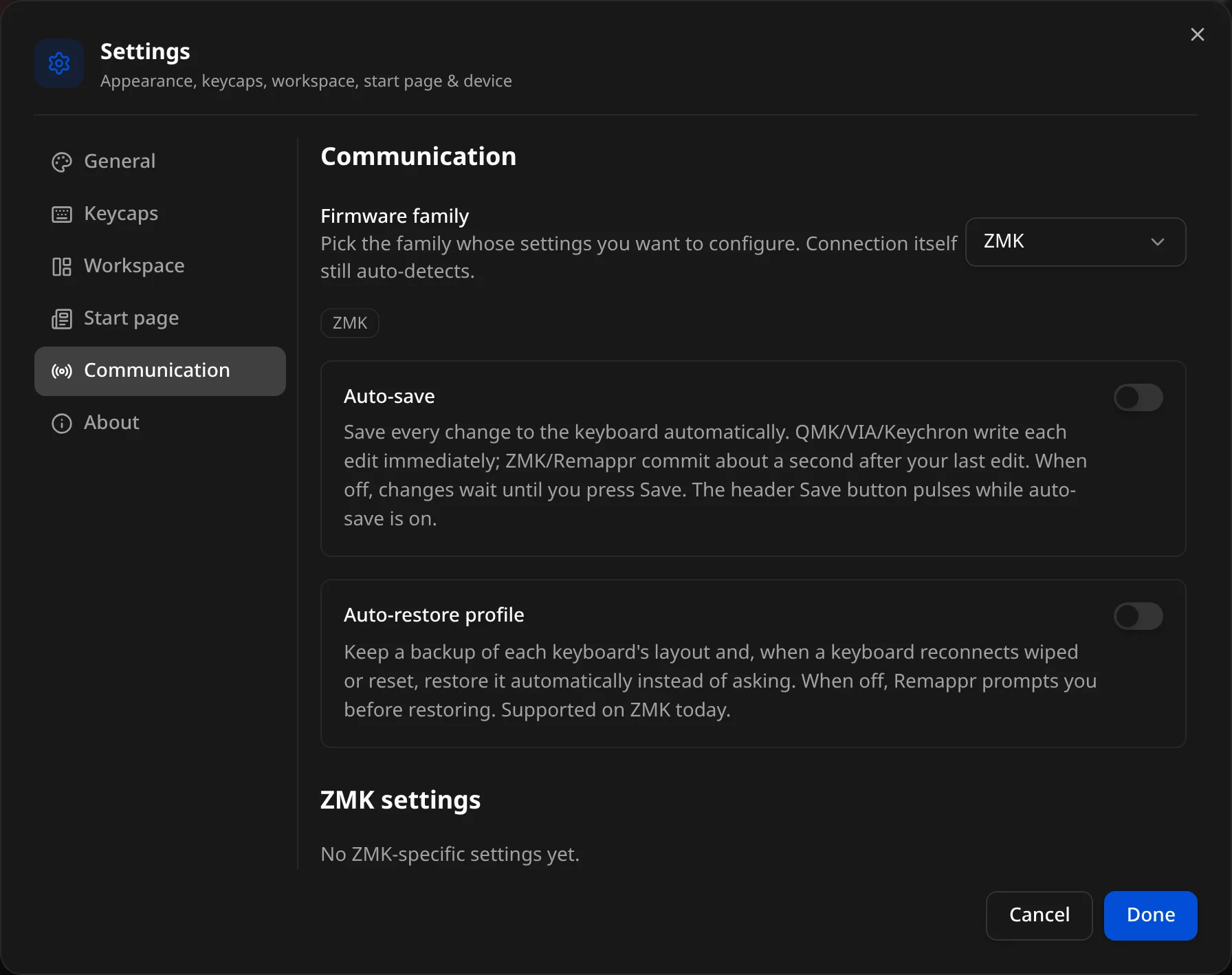
How Remappr talks to devices.
- Firmware family — "Pick the family whose settings you want to configure. Connection itself still auto-detects." The chips under the picker list the adapters registered for that family.
- Auto-save — "Save every change to the keyboard automatically." QMK / VIA / Keychron write each edit immediately; ZMK commits about a second after your last edit. With it off, edits wait for Save. The header Save button pulses while auto-save is on. Default: off.
- Auto-restore profile — keep a backup of each device's layout and, when a device reconnects wiped or reset, restore it without asking. With it off, Remappr prompts first. Supported on ZMK today — see Backup & restore.
Then a (family) settings block with whatever that family exposes — for example Auto-load layout from registry: look the board up in an online layout registry on connect, instead of uploading a definition by hand with the toolbar's load button. Families with nothing of their own say so ("No ZMK-specific settings yet.").
About
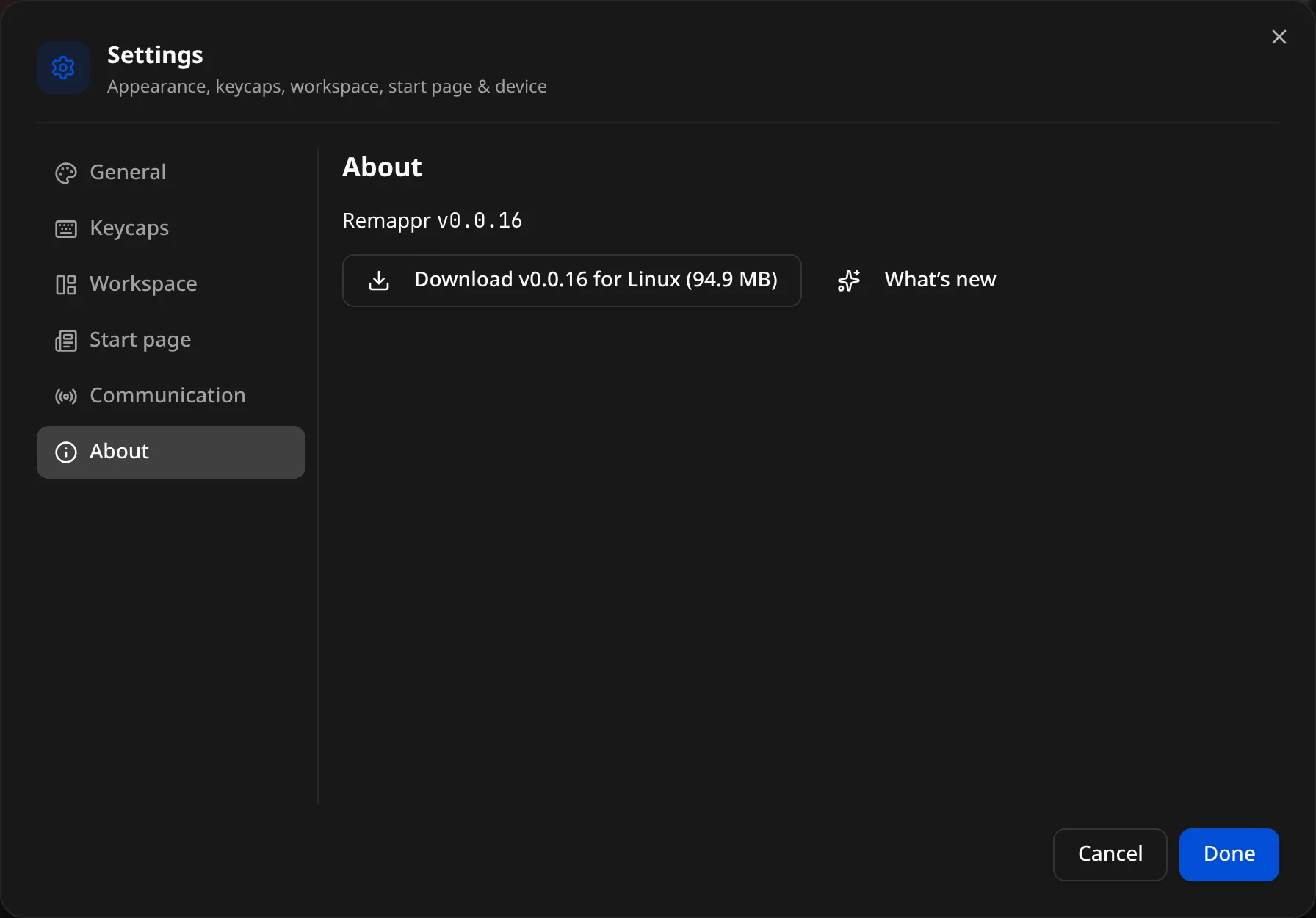
- The running version (Remappr v0.0.16).
- Download — the desktop app for your OS (latest release).
- What’s new — the release notes of the version you are running.
- Check for updates — desktop app only; when a newer release exists, a notification offers the download and a summary of what changed.
After an update, the desktop and web apps open What's new on their own the first time a new version starts — when the release brings new features.