
Advanced features
On a connected device, Remappr exposes the firmware's advanced behaviors and hardware settings — each capability-gated, so a panel only appears when the board actually supports it. The screenshots here come from demo mode, whose simulated board advertises most of them.
The Advanced sheet
Dynamic entries (⇄) and Macros (✦) in the header open the Advanced sheet, a dock under the board with one tab per kind of entry. Tabs appear only when the device advertises that capability. Click the header button again, or ×, to close it.
Each tab edits one numbered Entry at a time — the number box at the top-right picks which ("of 4": the device has four slots) — and Save writes that entry to the device.
| Tab | Shown when | Edits |
|---|---|---|
| Tap Dance | tap-dance count > 0 | Different actions per tap count and hold. |
| Combo | combo count > 0 | Keys pressed together → one output. |
| Key Override | key-override count > 0 | "This key with these mods sends something else." |
| Alt Repeat | supported | What the alternate-repeat key sends after a key. |
| Macros | macro count > 0 | Sequences of taps, presses, releases, delays, text. |
These map to the same concepts as the config's tapDances, macros and combos — here you edit them live on the device (mostly VIA / Vial / Keychron).
Tap Dance
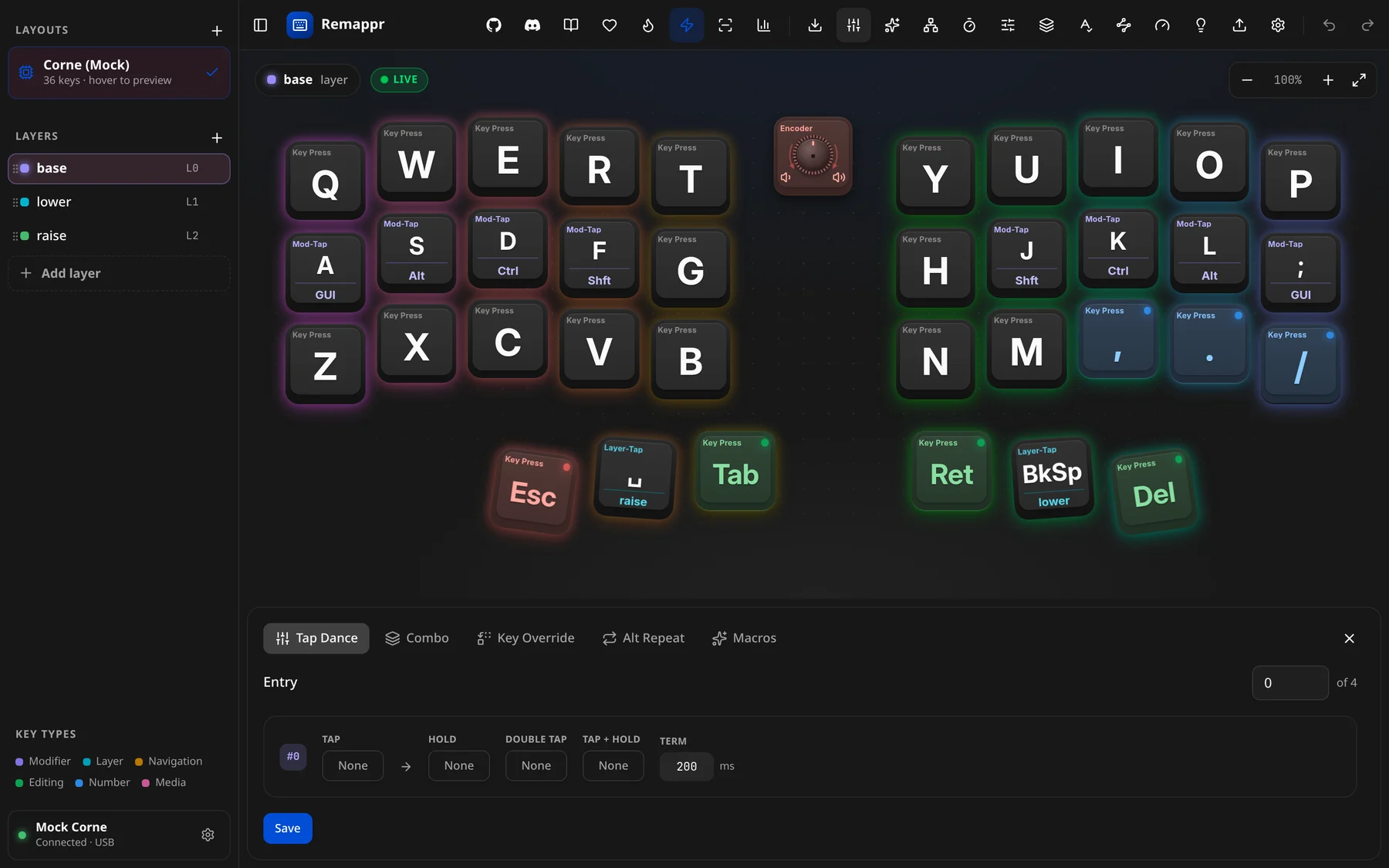
One row per entry: TAP, HOLD, DOUBLE TAP, TAP + HOLD, and TERM — how long (ms) the firmware waits to decide between them. Click a slot to pick its key. Bind the entry to a key with the tap-dance action in the binding editor.
Combo
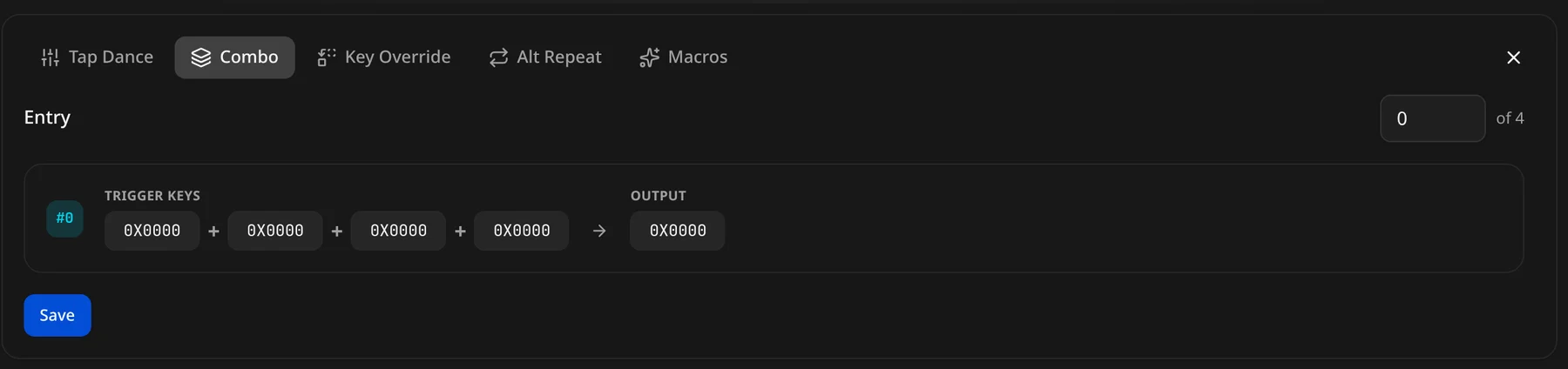
Up to four TRIGGER KEYS pressed together send the OUTPUT. Leave unused trigger slots empty.
Key Override
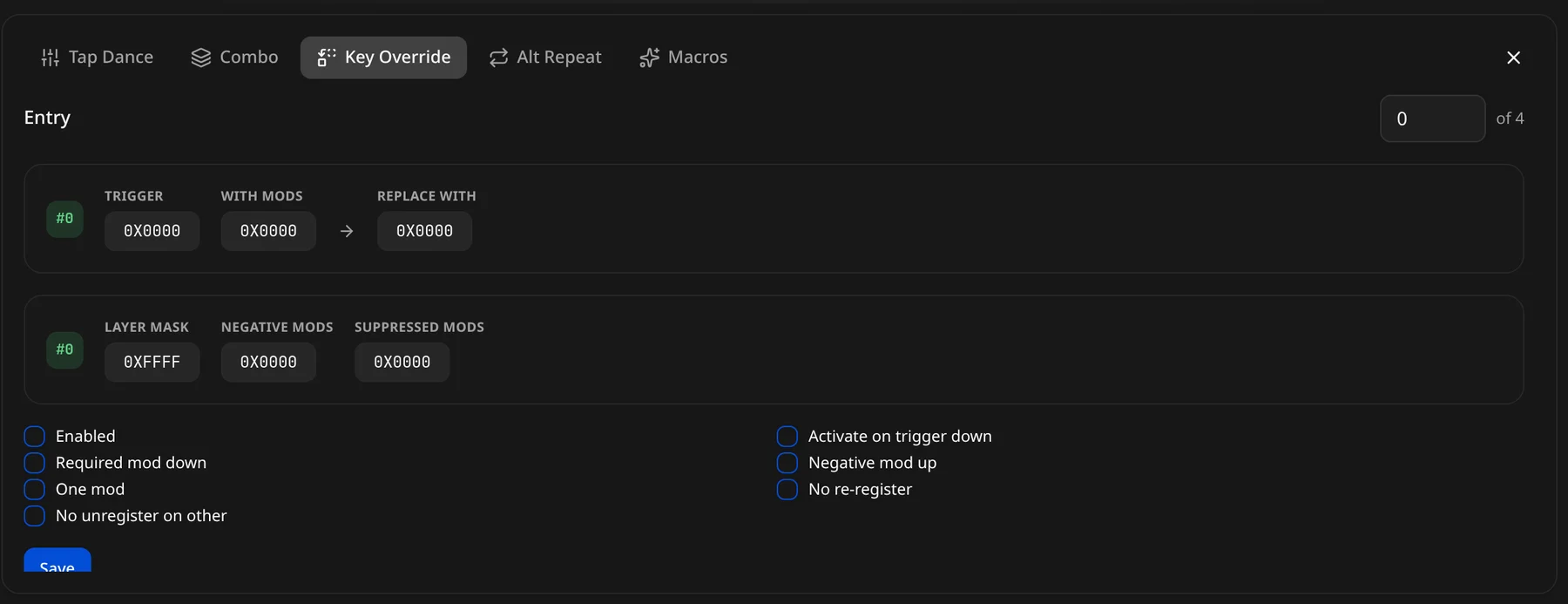
- TRIGGER WITH MODS → REPLACE WITH — e.g. Shift + Backspace sends Delete.
- LAYER MASK — the layers it applies on; NEGATIVE MODS — mods that must not be held; SUPPRESSED MODS — mods removed from the output.
- Options: Enabled, Required mod down, One mod, No unregister on other, Activate on trigger down, Negative mod up, No re-register — QMK's key-override flags.
Alt Repeat
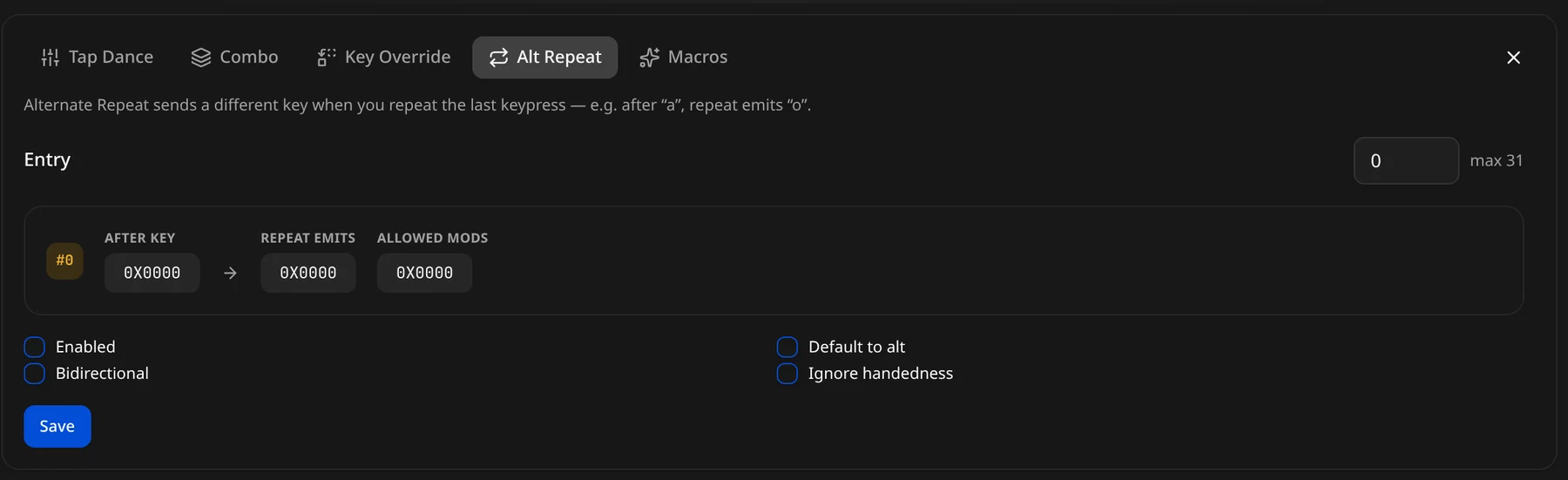
"Alternate Repeat sends a different key when you repeat the last keypress — e.g. after "a", repeat emits "o"." Each entry (up to the device's maximum — "max 31" here) pairs AFTER KEY with what REPEAT EMITS, limited to the ALLOWED MODS; options Enabled, Bidirectional, Default to alt and Ignore handedness.
Macros

A macro is a list of actions — tap, press, release, delay, type text. + Add action appends a step; Record captures what you type as steps. Bind a macro from the Macros tab of the binding editor's picker.
Capability-gated dialogs
Right of the Macros button, the header renders one icon per dialog the connected firmware advertises. A button that is not there means the device never reported that capability — nothing is hidden behind a setting. In toolbar order:
| Icon | Dialog | Opens |
|---|---|---|
| 📶 | Wireless | Power, NKRO & connection — see below. |
| 🕸 | Cluster diagnostics | Node-bus roles and live role changes — see below. |
| 🌐 | Unicode input | The host unicode input method — see below. |
| ⏱ | Advanced Mode | Debounce, report rate & key behaviour — see below. |
| ⏲ | Timing & Defaults | Tapping term, quick tap, combo timeout, debounce — see below. |
| 🎚 | Behaviors | The device's hold-taps and mod-morphs — see below. |
| ▤ | Conditional Layers | "When these layers are held, activate that one" — see below. |
| ✎ | Autocorrect | The on-device autocorrect dictionary — see below. |
| ⌗ | Node & Cluster | Node role and cluster address map — see below. |
| ⚡ | Link Profile | Node-bus latency / power profile — see below. |
Dialogs edit staged state: your changes go to the device when the keymap is saved (or immediately, with Auto-save on).
Timing & Defaults
"Behavior timing pushed to the device."
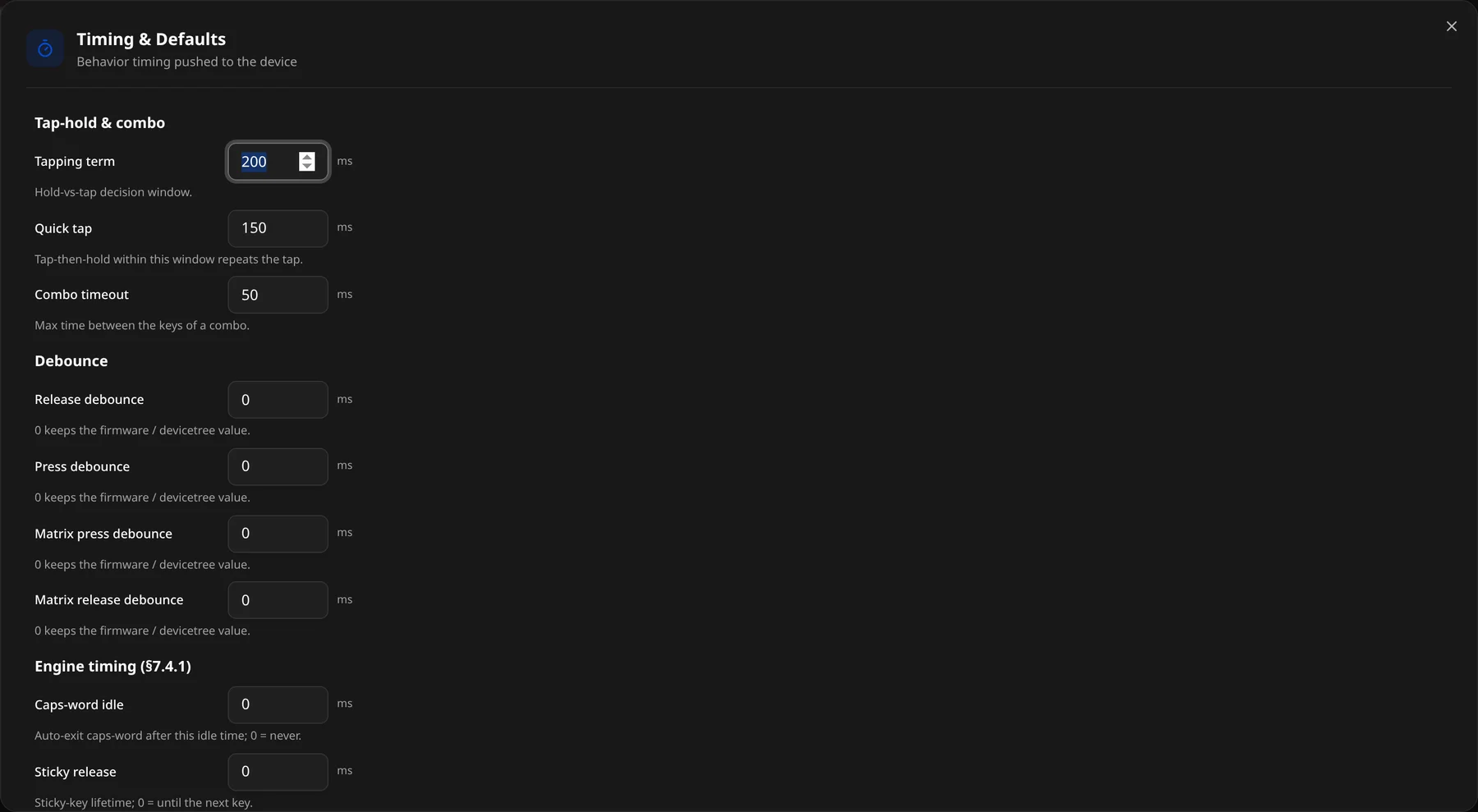
- Tap-hold & combo — Tapping term ("Hold-vs-tap decision window"), Quick tap ("Tap-then-hold within this window repeats the tap"), Combo timeout ("Max time between the keys of a combo").
- Debounce — release, press, matrix-press and matrix-release debounce; 0 keeps the firmware's own value.
- Engine timing — Caps-word idle (leave caps-word after this idle time, 0 = never) and Sticky release (sticky-key lifetime, 0 = until the next key).
Behaviors
"Custom hold-taps & mod-morphs pushed to the device."
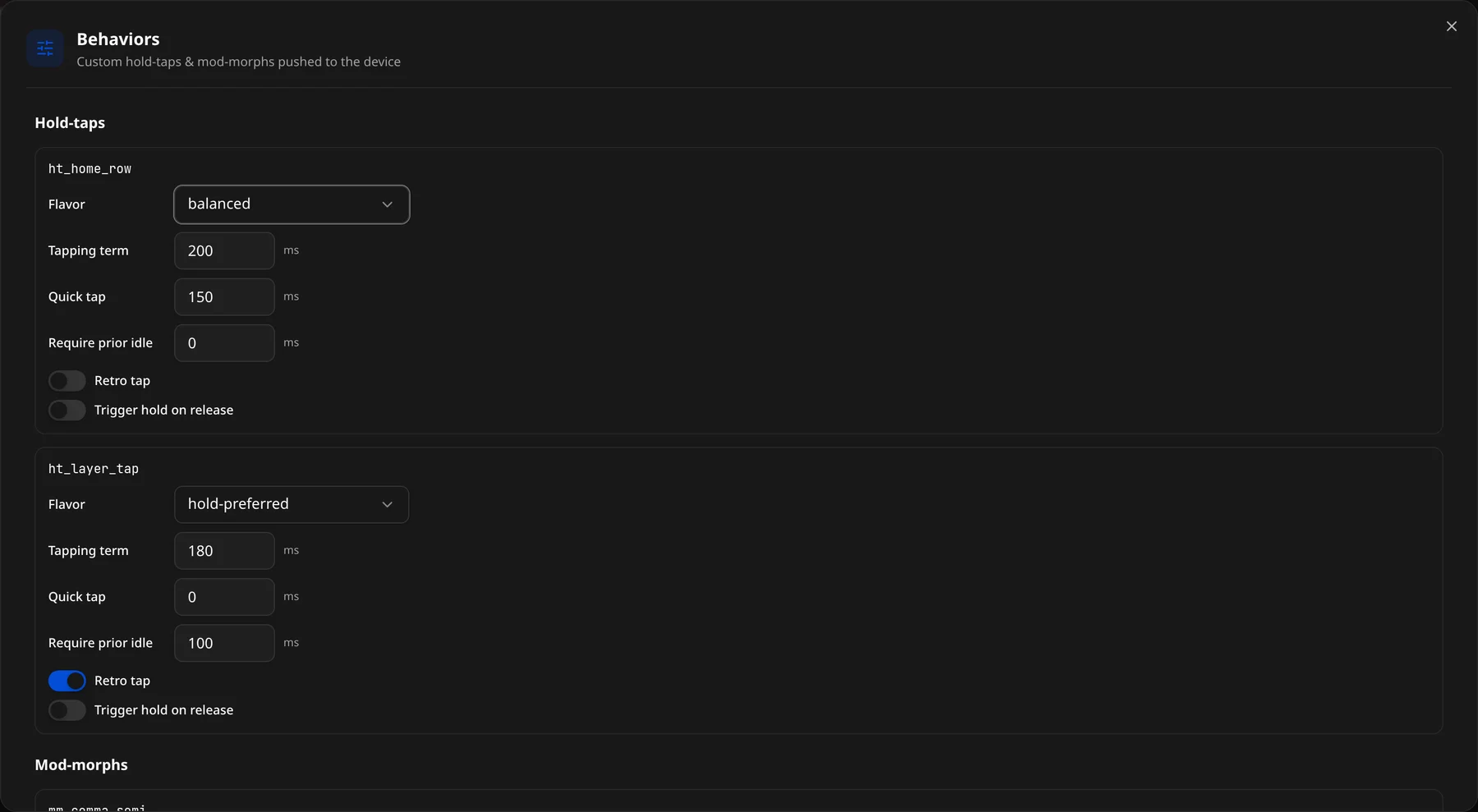
- Hold-taps — one card per hold-tap the keymap defines (
ht_home_row,ht_layer_tap…): Flavor (balanced, hold-preferred, tap-preferred, tap-unless-interrupted), Tapping term, Quick tap, Require prior idle, and the Retro tap and Trigger hold on release switches. - Mod-morphs — keys that send something else while a modifier is held (
,→;with Shift).
Conditional layers
"Auto-activate a layer while other layers are held (tri-layer)."
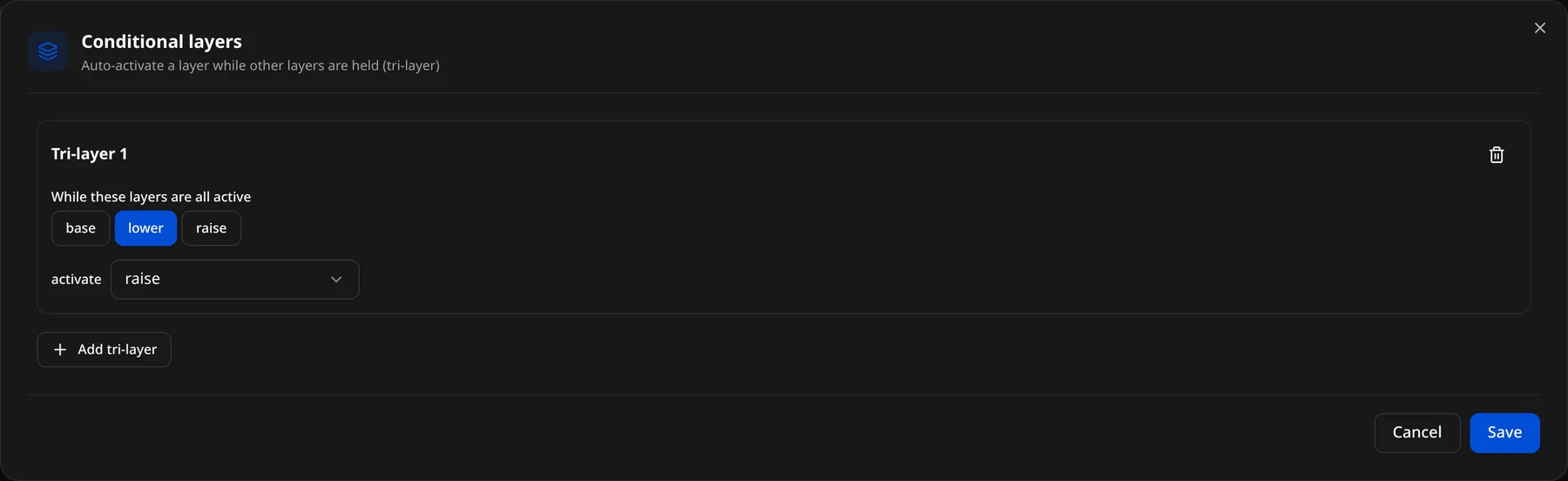
Each rule reads "When these layers are all active" (toggle the layer chips) → activate a layer. The classic tri-layer: holding lower and raise together turns on adjust. + Add tri-layer adds a rule; the bin removes one.
Unicode input
"Unicode input method" picks how a &unicode binding types a codepoint. The keyboard cannot detect what the host is set up for, which is why this is a setting rather than something automatic — the dialog only offers the methods the device reports as supported:
| Method | Types |
|---|---|
| Off | A &unicode binding types nothing. |
| Linux (IBus/GTK) | Ctrl+Shift+U, the hex digits, then Enter. |
| macOS | Holds Option over the hex digits. Needs the Unicode Hex Input keyboard layout selected. |
| Windows | Holds Alt over keypad + and the hex digits. Needs the EnableHexNumpad registry value. |
| WinCompose | Compose, u, the hex digits, then Enter. |
Autocorrect
"Misspellings the keyboard fixes as you type."
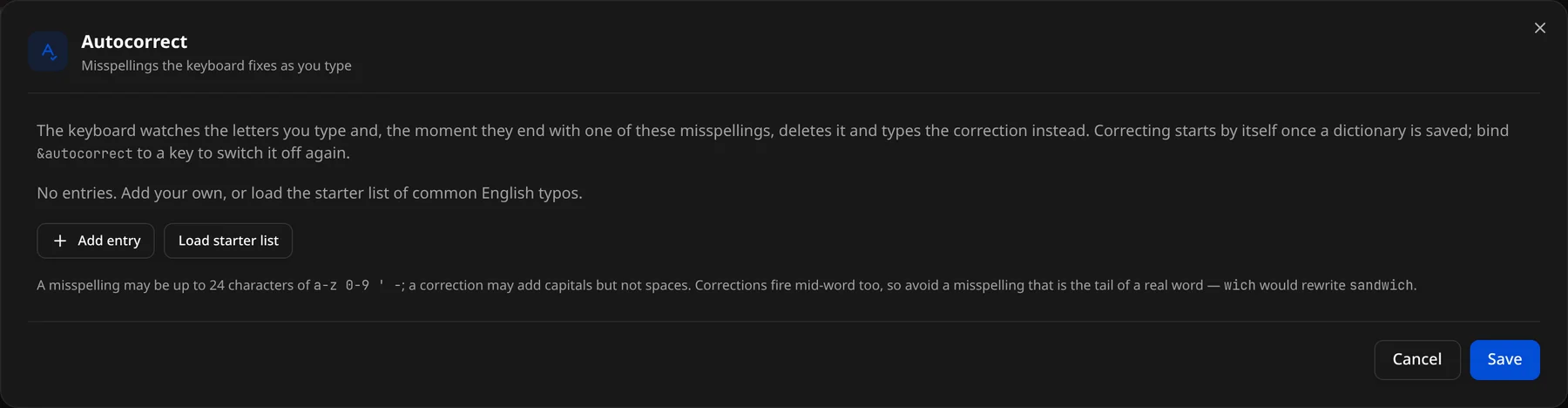
The dialog edits the device's dictionary — one row per typo → correction pair. The keyboard watches the letters you type and, the moment they end with one of the misspellings, deletes it and types the correction instead.
- Add entry appends a row; the bin icon removes one.
- Load starter list merges in the built-in list of common English typos.
- Typos are trimmed, lowercased and matched case-insensitively.
- Clearing every row is a valid edit: it pushes an empty table, which is how you tell the device to drop its dictionary.
Cluster diagnostics
For boards built out of several nodes on a node bus.
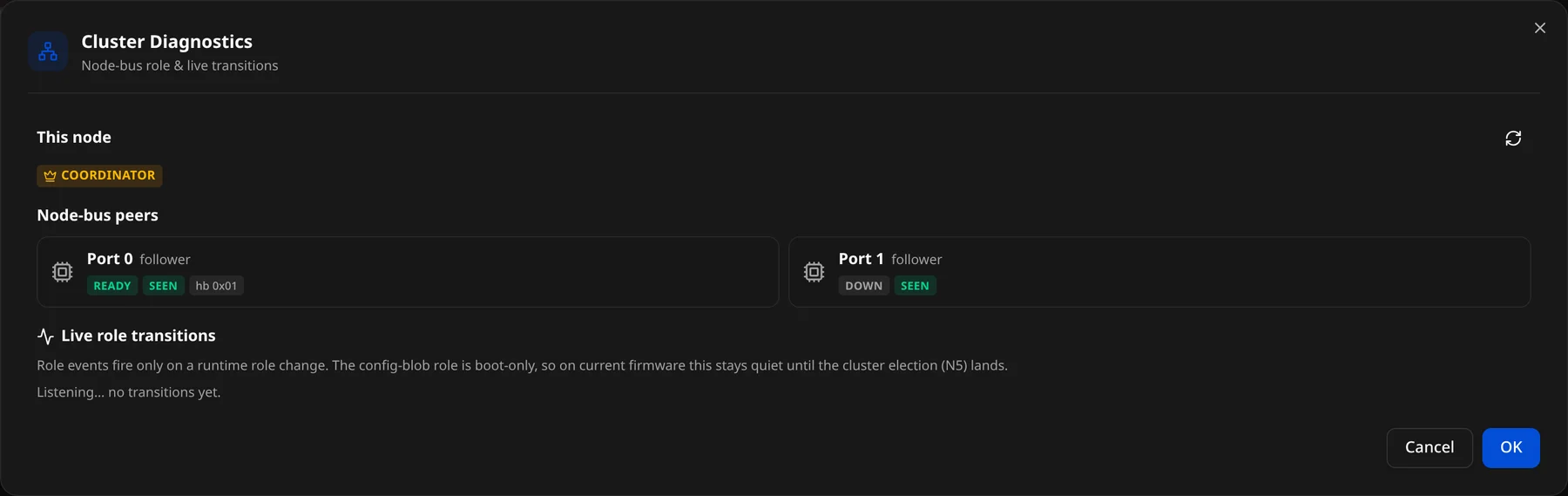
- This node — its current role (coordinator or follower).
- Node-bus peers — one card per port with the peer's role and state.
- Live role transitions — role changes as they happen (a coordinator dropping out and another taking over); ↻ refreshes.
Node & cluster
"Cluster role, input forwarding, and the mode-A position map."
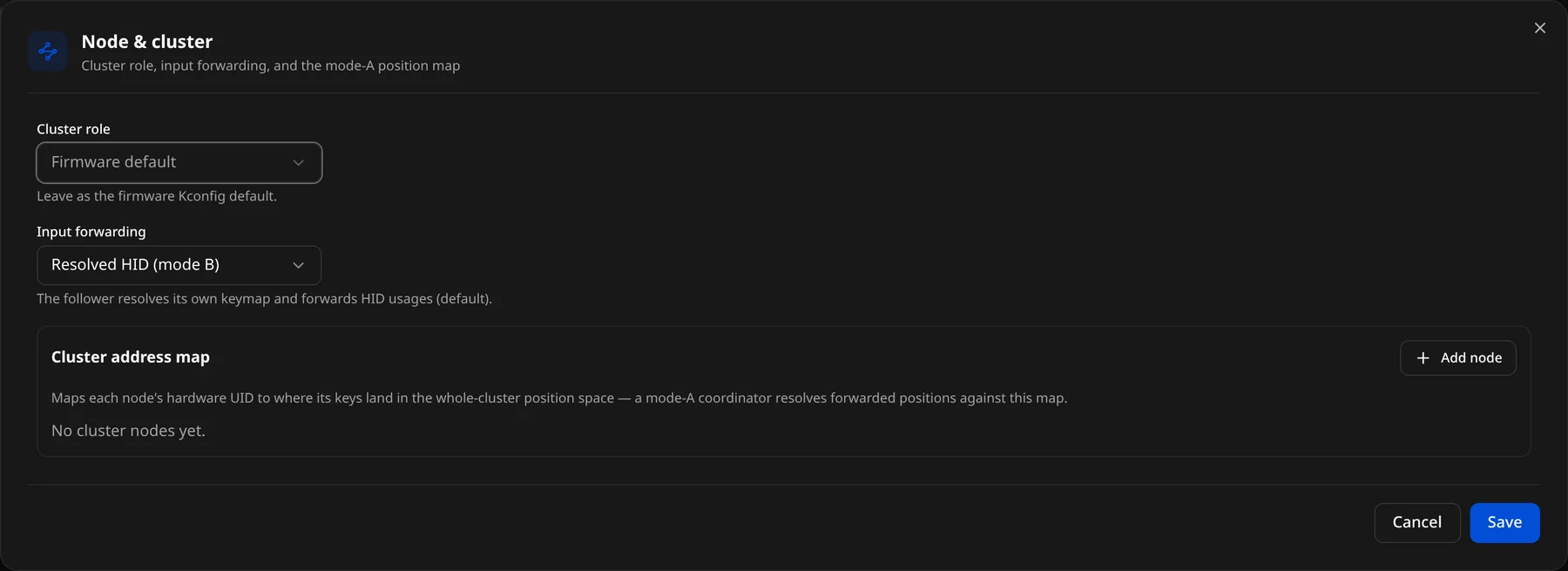
- Cluster role — what this node is on the bus (coordinator or peripheral), or Firmware default.
- Input forwarding — whether it forwards resolved HID output or raw events.
- Cluster address map — for a coordinator, one row per node (+ Add node): hardware UID plus its position / encoder / pointer base, so every node's inputs land at the right offsets in one keymap.
Link profile
"Node-bus latency, election cadence, and power tier."
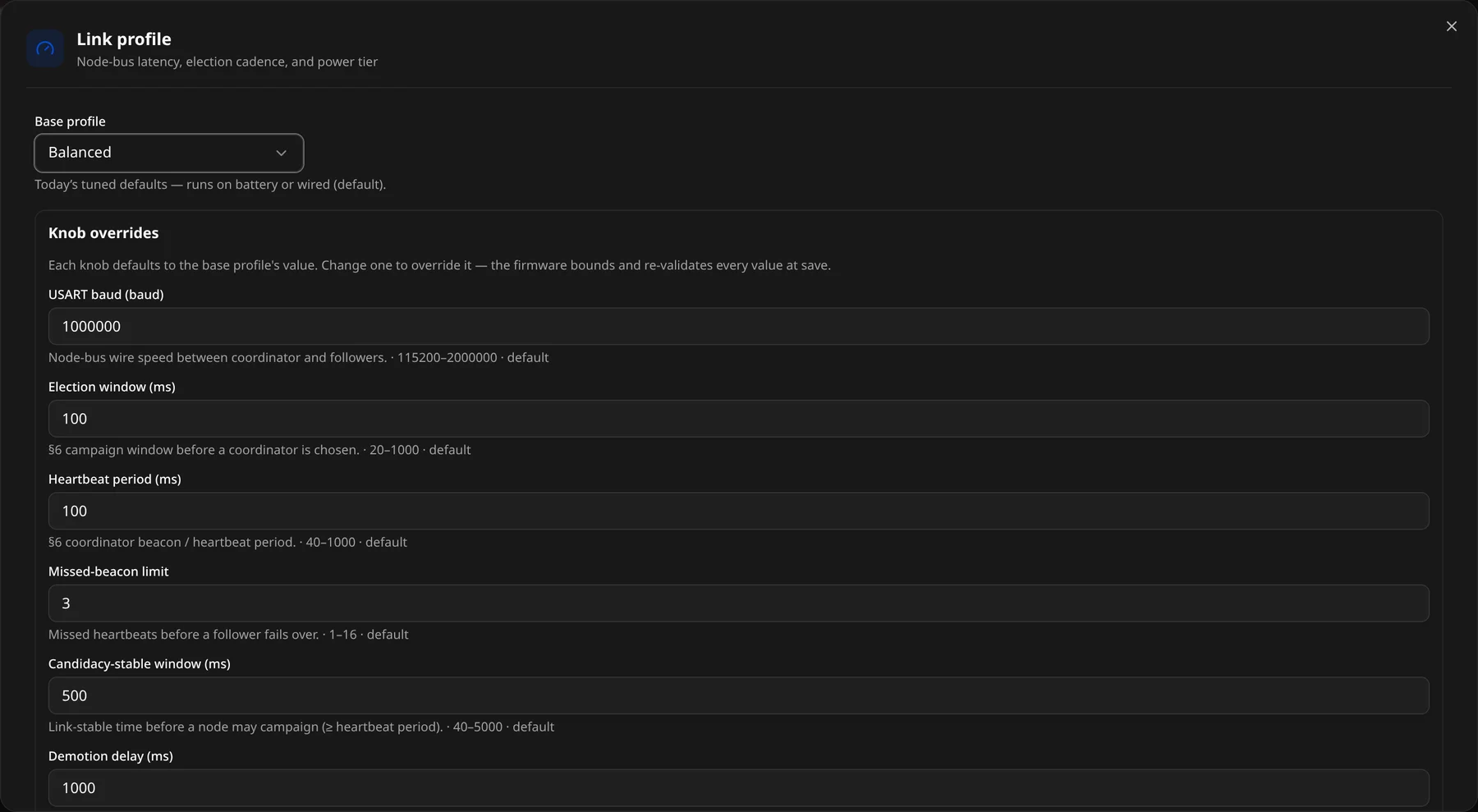
- Base profile — Balanced, Gaming or Power-save.
- Knob overrides — bus baud rate, election window, heartbeat period, missed beacon limit, candidacy and demotion timing, power tier. Each shows its range and the profile's default.
Ranges come from the device's live limits (with the firmware's constraint table as a fallback), and are validated with the same rules the firmware enforces on commit — so the dialog will not offer or save an out-of-range or inconsistent combination. Reset puts a knob back to its profile default.
Wireless settings
The Wireless button (📶) opens "Wireless Settings — Power, NKRO & connection":
- Status — transport (
usb/ble), BT slot, battery level / charging, wireless module. - Low-power mode — Enable LPM, Timeout (ms), Save LPM.
- N-Key Rollover — Enable NKRO.
- Danger zone — Factory reset ("Reset all settings to factory defaults? This cannot be undone.").
Advanced Mode
The Advanced Mode button (ⓘ) opens "Advanced Mode — Debounce, report rate & key behaviour":
- Debounce — Response time slider (0–80 ms) + raw Mode, Save debounce.
- Report rate — raw Value, Save report rate.
- Snap-click — Enable snap-click (rapid trigger).
- N-Key Rollover — Enable NKRO.
- Quick Start — note that auto-sleep / auto-backlight-off live in the Wireless panel.
Device controls
- Bluetooth profiles — manage BT connection slots (ZMK / Keychron).
- Lock / unlock — see Connecting a device.
- Restore Stock Settings — from the device menu, resets to the stock keymap.
- Restore backup — re-apply Remappr's own backup of this device's layout, see Backup & restore.
- Mesh nodes — open the keymap of a node behind a dongle or coordinator (read-only today), see The device menu.